> For the complete documentation index, see [llms.txt](https://docs.sumble.com/llms.txt). Markdown versions of documentation pages are available by appending `.md` to page URLs; this page is available as [Markdown](https://docs.sumble.com/web-app/lists-monitoring/intent-alerts.md).
# Alerts
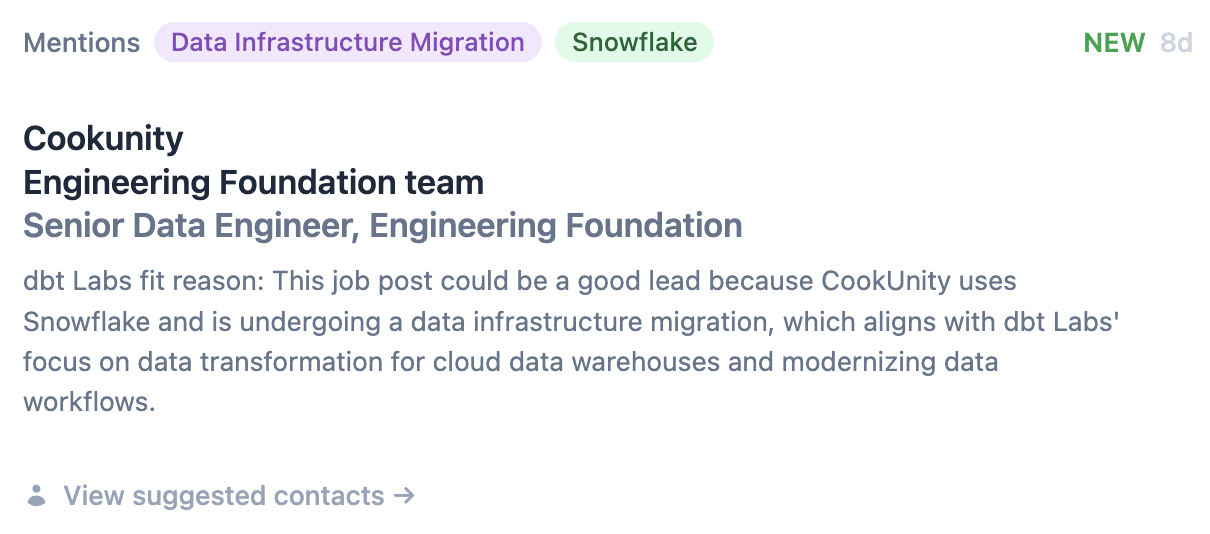
Intent alerts notify you when Sumble detects a selling opportunity in your accounts. As you use Sumble, the platform learns what matters to you — the organizations you research, the technologies you filter by, and the searches you run — and starts surfacing relevant [intent signals](/web-app/account-intelligence/intent-signals.md) automatically.
Once you've logged enough activity, the alerts icon appears in the left sidebar. Click it to see all the alerts Sumble has found for you.
## How Sumble learns what matters
Sumble tracks your activity to build a profile of what's relevant to you:
* Organizations you view and research
* Technologies and job functions you filter by
* Searches you run and results you interact with
This activity is used to generate personalized alerts without any manual configuration. Enterprise customers can also configure signals explicitly — see [Sumble Signals](/enterprise-services/sumble-signals.md).
## Alert delivery
Alerts are delivered through multiple channels:
* **In-app** — the Signals page at [sumble.com/signals](https://sumble.com/signals)
* **Slack** — direct messages or a shared channel (requires [Slack integration](/system-setup-and-configuration/notifications/slack-alerts.md))
* **Email** — periodic digests with your latest alerts
## Managing alerts
On the Signals page you can:
* **Mark as relevant** — tells Sumble this type of alert is useful to you
* **Mark as not relevant** — helps Sumble improve future alert quality
* **Favorite** — save an alert for later reference
* **Click through** — jump to the underlying organization, job post, or person profile
## Configuring preferences
Alert preferences can be managed from [Account > Settings](https://sumble.com/account/settings), where you can control delivery channels and frequency.
## Alert limits by plan
| Plan | Alert volume | Configuration |
| ---------- | ---------------- | --------------------------------------------------------------------------------- |
| Free | Up to 8 per week | Automatic |
| Pro | Up to 20 per day | Automatic |
| Enterprise | Unlimited | Fully configurable — see [Sumble Signals](/enterprise-services/sumble-signals.md) |
Enterprise customers can configure specific signal types, target technologies, job functions, and routing rules. See [Sumble Signals](/enterprise-services/sumble-signals.md) for the full configuration and integration details.
 appears in the left sidebar. Click it to see all the alerts Sumble has found for you.